Assassin’s Creed Shadows: Performance Insights and Optimization Guide
Ubisoft’s latest installment in the Assassin’s Creed franchise, Shadows, represents a significant leap in visual ambition and technical complexity. Set in feudal Japan, the game delivers stunning environments, intricate character animations, and dynamic weather systems that push modern hardware to its limits. However, with great visuals comes the challenge of maintaining smooth, consistent performance across different gaming platforms.
Whether you’re playing on PC, PlayStation 5, or Xbox Series X|S, understanding how Assassin’s Creed Shadows performance works—and how to optimize it—can transform your gaming experience from frustrating to phenomenal. This guide dives deep into the technical aspects, hardware requirements, and practical tweaks that will help you achieve the performance sweet spot for your setup.
The reality is that not every player has a cutting-edge rig, and Ubisoft knows this. That’s why Shadows includes granular graphics settings that let you dial in exactly what matters most to you: frame rates, resolution, or visual fidelity. Let’s explore how to make the most of what you’ve got.
Understanding Assassin’s Creed Shadows Technical Requirements
Before diving into optimization strategies, you need to understand what Shadows actually demands from your system. Ubisoft has published minimum, recommended, and ultra specifications, but these numbers tell only part of the story.
The minimum specifications target 1080p resolution at 30 frames per second with low graphics settings. You’re looking at an RTX 2060 or RX 5700 XT on the GPU side, paired with a Ryzen 5 3600 or Intel i7-10700K processor. In practice, hitting these targets means accepting significant visual compromises—lower draw distances, reduced shadow quality, and less detailed textures.
The recommended tier aims for 1440p at 60 fps with high settings. This requires more robust hardware: an RTX 3070 or RX 6800 XT, with a current-generation CPU like the Ryzen 7 5800X3D or Intel i9-12900K. Most players targeting this sweet spot report solid, enjoyable performance without constant tinkering.
The ultra specifications chase 4K resolution at 60 fps with maximum settings and ray tracing enabled. This demands flagship hardware: RTX 4090 or RX 7900 XTX territory, paired with the latest high-end processors. Realistically, even these systems occasionally dip below 60 fps in demanding scenes.
What’s crucial to understand is that these recommendations assume you’re playing on a system with adequate cooling, proper driver updates, and no background processes hogging resources. Real-world performance depends on numerous variables beyond raw hardware specs.
If you’re serious about maximizing your system’s capabilities, exploring application performance tools can help you identify exactly where your bottlenecks exist. Similarly, understanding application performance management tools gives you insight into how different components interact during gameplay.
GPU Performance: The Primary Bottleneck
Your graphics card is almost always the limiting factor in Assassin’s Creed Shadows performance. The game’s engine, Snowdrop, excels at rendering complex environments with multiple light sources, volumetric effects, and detailed character models. This beauty comes at a computational cost.
NVIDIA’s ray tracing technology plays a significant role in the game’s visual impact. Ray-traced reflections on water, realistic shadows from multiple light sources, and ambient occlusion all contribute to immersion but devastate frame rates on mid-range hardware. Disabling ray tracing can provide a 20-30% performance boost on cards like the RTX 3070 Ti, and even larger gains on older generations.
VRAM becomes critical at higher resolutions. At 4K with maximum texture settings, Shadows can consume 10-12GB of VRAM. Cards with only 6GB of memory will experience stuttering as the system constantly swaps data between VRAM and system RAM. If you’re running on a 6GB card, either accept 1440p as your ceiling or reduce texture quality.
Driver updates matter more than most players realize. NVIDIA and AMD release game-specific driver optimizations regularly. Before troubleshooting performance issues, verify you’re running the latest drivers. A driver update can provide 5-15% performance improvements in some cases.
Consider your power supply, too. Modern high-end GPUs demand stable, abundant power delivery. An underpowered PSU can cause thermal throttling, where your card reduces clock speeds to manage heat—invisible to you, but devastating to frame rates.
CPU Considerations and Optimization
While the GPU handles rendering, the CPU manages game logic, physics, AI behavior, and streaming data from storage. Assassin’s Creed Shadows is notably CPU-efficient compared to some open-world titles, but it still benefits from strong processor performance.
The game scales well across different core counts. A 6-core processor can run it, but 8-core or higher systems deliver noticeably smoother frame pacing, especially in crowded areas with numerous NPCs. The difference between a Ryzen 5 5600X and a Ryzen 7 5800X3D is typically 10-15 fps in demanding scenes.
Clock speed matters significantly. Shadows favors higher single-threaded performance over pure core count. A Ryzen 5 7600X with 6 cores at high clock speeds often outperforms a Ryzen 7 7700X with 8 cores at slightly lower clocks, despite the extra cores.
Thermal management is essential. CPUs that overheat reduce clock speeds automatically, causing frame rate dips. Ensure your CPU cooler is adequate for your processor—a budget cooler on a high-end chip is a common mistake that crushes performance invisibly.
Background processes create unnecessary CPU load. Discord, Chrome with multiple tabs, antivirus scans, and Windows updates all consume CPU cycles. Before gaming, close unnecessary applications. Even small performance gains add up to the difference between 58 fps and 60 fps consistency.
For those interested in understanding how different optimization approaches work, examining 32x performance tips for Retroarch reveals universal principles about prioritizing resources and eliminating bottlenecks that apply to modern gaming as well.
RAM, Storage, and System Memory
System RAM requirements are straightforward: 16GB is the practical minimum, 32GB is ideal for future-proofing. Shadows doesn’t demand massive amounts of RAM, but having sufficient headroom prevents stuttering when your system needs to page memory to storage.
RAM speed and latency affect performance subtly but measurably. DDR4 3600MHz CAS 16 performs noticeably better than DDR4 3200MHz CAS 18, particularly on AMD Ryzen systems. If you’re building a gaming PC in 2024, prioritize faster RAM—the cost difference is minimal.
Storage speed influences loading times and open-world streaming performance. An NVMe SSD with 7,000+ MB/s sequential read speed ensures textures and geometry load quickly as you traverse Japan’s landscape. SATA SSDs work but introduce noticeable loading delays. HDD storage is essentially unplayable for modern open-world games.
SSD health matters too. A drive near capacity or with high fragmentation exhibits degraded performance. Keep at least 10-15% of your SSD free, and periodically check SMART health status using tools like CrystalDiskInfo.
For comprehensive insights into optimizing system-wide performance, exploring Ace Performance strategies provides broader context for how different system components work together harmoniously.
Graphics Settings Breakdown
Assassin’s Creed Shadows offers granular graphics controls that let you make informed trade-offs. Rather than generic “low/medium/high” presets, the game exposes individual settings, empowering you to optimize intelligently.
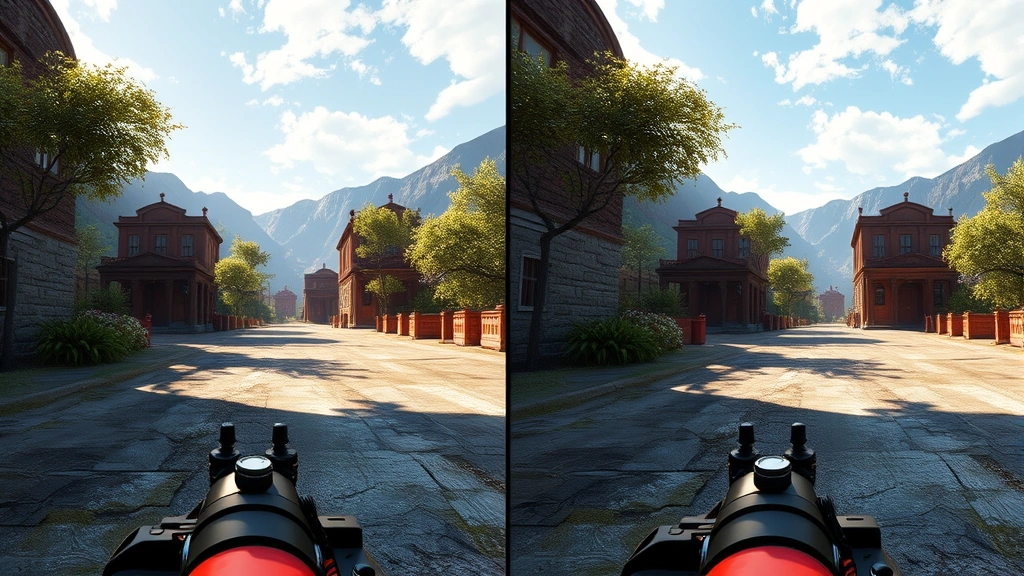
Resolution and Upscaling: Native rendering at 4K demands enormous GPU power. Upscaling technologies like DLSS (NVIDIA) and FSR (AMD) render at lower resolution and intelligently upscale to your target resolution. DLSS 3 with frame generation can nearly double frame rates with minimal visual loss. If your hardware supports it, upscaling is the single most impactful setting.
Ray Tracing: Disable it if you’re targeting 60+ fps on mid-range hardware. The visual improvement doesn’t justify the 25-40% performance cost unless you have a high-end GPU. At 1440p on a RTX 4070, ray tracing enabled drops you from 85 fps to around 55 fps.
Texture Quality: This setting directly correlates to VRAM consumption. High textures require 8-10GB VRAM; ultra requires 10-12GB. If you see stuttering despite adequate GPU and CPU performance, reduce texture quality—it’s likely a VRAM issue.
Draw Distance and LOD: These control how far into the distance the game renders detail. Reducing them improves performance with subtle visual impact unless you’re zooming in on distant landscapes. This is a smart compromise for 10-15% performance gains.
Shadows and Ambient Occlusion: Shadow quality significantly impacts frame rates. Ultra shadows with ray-traced shadows are beautiful but expensive. Medium or high shadows look excellent and save 10-15% performance.
Water and Volumetrics: Water reflections and volumetric effects (fog, light rays) are visually striking but optional. Disabling these saves 5-10% performance with acceptable visual compromise.
Platform-Specific Performance Analysis
PC Performance: PC offers the most flexibility but demands more user knowledge. You can squeeze better performance through driver updates, overclocking, and granular settings adjustments. However, you’re also responsible for diagnosing issues. Most PC players report solid 60+ fps at 1440p with high settings on RTX 3070-equivalent hardware or better.
PlayStation 5: Ubisoft offers two PS5 modes: Performance Mode (1440p/60fps) and Fidelity Mode (4K/30fps). Performance Mode is the clear choice for most players—the jump from 30 to 60 fps dramatically improves responsiveness and visual smoothness. The 1440p resolution looks sharp on most TVs at normal viewing distances. PS5’s fixed hardware means consistent, predictable performance without tinkering.
Xbox Series X|S: The Series X matches PS5 capabilities with similar mode options. Series S, the budget console, targets 1440p/60fps with medium settings—still impressive for the hardware. Performance is generally locked and stable, though demanding scenes occasionally dip to 50-55 fps.
For those interested in how performance optimization extends across different systems, understanding 2024 Tesla Model 3 Performance For Sale principles—though from a different domain—reveals how optimization prioritizes efficiency and real-world usability over theoretical maximums.
Real-World Performance Metrics
Benchmarks are useful, but real-world gameplay experience matters most. Here’s what players typically report across different hardware configurations:
Budget Gaming ($800-1200 PC): RTX 3060 Ti or RX 6700 XT with Ryzen 5 5600X. Expect 1080p/60fps on high settings, or 1440p/45-50fps on medium settings. With upscaling, you can hit 1440p/60fps comfortably. This represents solid entry-level 1440p gaming.
Mid-Range Gaming ($1200-1800 PC): RTX 4070 or RX 7800 XT with Ryzen 7 7700X or Intel i7-13700K. Delivers consistent 1440p/100+ fps on high settings, or 4K/60fps on high settings with upscaling. This tier offers the best value-to-performance ratio for Shadows.
High-End Gaming ($1800-2500 PC): RTX 4080 or RX 7900 XT with current-generation high-end CPU. Achieves 4K/120fps on high settings, or 4K/80-100fps with ray tracing enabled. Overkill for 60 fps but excellent for high refresh rate gaming.
Flagship Gaming ($2500+ PC): RTX 4090 or RX 7900 XTX. Pushes 4K/120+ fps with maximum settings and ray tracing. Diminishing returns kick in here—you’re paying significantly more for modest real-world improvements.
Frame rate consistency matters as much as average fps. A system that maintains 60 fps consistently feels smoother than one that averages 65 fps but fluctuates between 50-80. Monitor both metrics when evaluating performance.
Advanced Optimization Techniques
Overclocking: Experienced users can squeeze 5-10% additional performance through GPU and CPU overclocking. This involves increasing clock speeds and voltages while maintaining stability. It’s effective but voids warranties and requires technical knowledge. For most players, the risk-reward ratio doesn’t justify it.
NVIDIA Control Panel Optimization: Disable NVIDIA’s power management features and set the power plan to maximum performance. Adjust shader cache settings and enable ultra-low latency mode. These tweaks provide 2-3% performance improvements with zero risk.
AMD Radeon Software Tuning: Similar to NVIDIA, AMD’s drivers include optimization options. Enable enhanced sync, adjust power efficiency settings, and verify that game-specific optimizations are active. Check for driver updates frequently—AMD releases performance patches regularly.
Windows 11 Game Mode and Game Bar: Ensure Game Mode is enabled (it is by default). Disable Game Bar unless you actively use it—it consumes resources. Close Windows Update during gaming sessions to prevent background bandwidth usage.
Thermal Management: Invest in adequate cooling. A $50 aftermarket CPU cooler or fresh thermal paste on your GPU can reduce temperatures by 10-15°C, eliminating thermal throttling and unlocking 3-5% performance gains. Clean dust from heatsinks quarterly.
For those serious about systematic performance improvement, understanding how to use application performance tools to monitor system metrics during gameplay helps identify exactly where bottlenecks occur—CPU usage, GPU utilization, memory pressure, or I/O limitations. This data-driven approach beats guessing.
Frequently Asked Questions
What’s the optimal frame rate for Assassin’s Creed Shadows?
60 fps is the standard target for console-quality gaming. It’s smooth, responsive, and what most players expect. 120+ fps is excellent if your hardware and monitor support it, but diminishing returns kick in quickly. Most players find 60-100 fps the sweet spot between visual fidelity and performance.
Should I enable ray tracing?
Only if you have a high-end GPU (RTX 4080 or better). Ray tracing in Shadows improves visual quality noticeably but costs 25-40% performance. On mid-range hardware, the frame rate hit outweighs visual benefits. Rasterized shadows look excellent and run much faster.
How much VRAM do I actually need?
8GB is the practical minimum for 1440p high settings. 10-12GB is ideal for 4K maximum settings. If you see stuttering despite adequate GPU and CPU performance, VRAM shortage is likely. Reduce texture quality to confirm.
Does SSD speed really matter for gaming?
Yes, meaningfully. NVMe SSDs (7,000+ MB/s) provide nearly instant loading and smooth world streaming. SATA SSDs work but introduce noticeable delays. HDD storage is essentially unplayable. If you’re experiencing frequent stutters and loading hangs, upgrading to NVMe is transformative.
Can I run Shadows on older hardware?
Yes, but with expectations management. A GTX 1080 Ti or RTX 2080 can run it at 1080p/60fps on medium settings. Older cards struggle with VRAM limitations and missing optimization support. If your hardware is 4+ years old, expect compromises on resolution or settings.
What’s the difference between DLSS and FSR?
DLSS (NVIDIA) uses AI to intelligently upscale lower-resolution renders to target resolution, often looking sharper than native. FSR (AMD) uses mathematical algorithms and typically looks slightly softer. DLSS 3 with frame generation can nearly double frame rates. FSR is more widely compatible across hardware generations. Both improve performance significantly.
Why does my performance fluctuate so much?
Several factors cause inconsistent frame rates: thermal throttling, background processes, driver issues, or power delivery problems. Monitor GPU/CPU temperatures and utilization during gameplay. If temperatures spike, your cooling is inadequate. If utilization drops, background processes are stealing resources. Verify drivers are current and disable unnecessary background applications.
Should I upgrade my CPU or GPU first?
Identify your bottleneck first. During gameplay, check GPU and CPU utilization. If GPU sits at 98-100% utilization while CPU is at 60-70%, your GPU is bottlenecked—upgrade it. If CPU is consistently at 95%+ while GPU is at 70-80%, your CPU limits performance. Upgrade accordingly. Balanced systems use both components near maximum capacity.